How to convert images online for free?
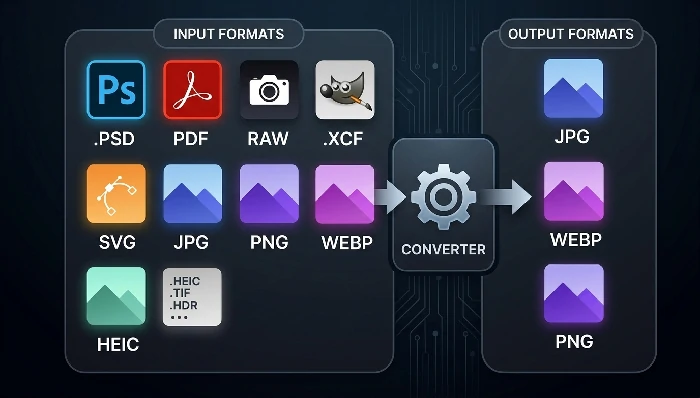
Easyconvert is a free online image converter that lets you batch convert more than 60 image formats — including PDF, PSD, HEIC, RAW camera files, TIFF, SVG and many others — into JPG, WebP, PNG or AVIF. It runs entirely in your browser using WebAssembly, so no files are ever uploaded to a server and your data stays 100% private.
The converter supports a wide range of sources: common formats (JPG, PNG, GIF, WebP, AVIF, BMP, SVG, HEIC), large documents (PSD, PSB, TIFF, HDR, TGA, XCF), PDF pages, and dozens of camera RAW formats from Sony, Canon, Nikon, Fujifilm, Olympus, Pentax, Panasonic and more. You can also adjust the output quality and resize the image during conversion.
Because all processing happens locally on your device, the tool works quickly and can handle batch conversion of hundreds of images at once. Once finished, the converted files are packaged into a ZIP file for convenient download.
Click the "Select the file" button and choose one or more images, or directly drag and drop image files onto this page. You can also paste an image from the clipboard using Ctrl+V, or click "Select folder" to import an entire folder of images for batch conversion.
2
Choose the output format and quality
Select the target format (JPG, WebP, PNG or AVIF) from the "Format" dropdown. Adjust the "image quality" option to balance file size and visual quality, and use "Modify size" to scale the image up or down during conversion, or leave it as "Constant" to keep the original dimensions.
3
Start conversion and download
Click the "Start" button in the lower right corner. The tool will process all images locally in your browser. Once completed, click the download button to save the converted images. If you converted multiple images, they will be packaged into a ZIP file for convenient download.
How does PDF to JPG conversion work?
PDF to JPG conversion uses the pdf.js library to render each page of the PDF document into a high-resolution raster image, which is then encoded as a JPG file. Each page of the PDF becomes a separate JPG image, making it easy to extract images from documents or share individual pages. The conversion happens entirely in your browser, so confidential PDFs never leave your device.
How does HEIC to JPG conversion work?
HEIC (High Efficiency Image Container) is the default photo format used by modern iPhones and iPads. It offers better compression than JPG but is not universally supported. The tool uses the heic2any library to decode HEIC/HEIF files entirely in the browser and re-encode them as widely compatible JPG files. This is perfect for converting iPhone photos so they can be viewed on any device or uploaded to websites that do not accept HEIC.
How does RAW to JPG conversion work?
Camera RAW formats (such as CR2, NEF, ARW, DNG, RAF, ORF and many others) contain unprocessed sensor data straight from the camera. The tool uses a WebAssembly build of dcraw to decode the RAW data and then encodes the result as a JPG image. This lets you turn professional camera RAW files into shareable JPGs without installing any desktop software. More than 30 RAW formats from Sony, Canon, Nikon, Fujifilm, Olympus, Pentax, Panasonic and other manufacturers are supported.
How does PSD to PNG/JPG conversion work?
PSD is the native layered format of Adobe Photoshop. The tool uses a WebAssembly port of ImageMagick (magick.js) to rasterize the PSD file — merging all visible layers — and export it as a flattened PNG or JPG image. This is ideal for designers who need to quickly export Photoshop artwork for the web without opening Photoshop. PSB (large document format) and many other layered formats are also supported.
How does WebP to JPG conversion work?
WebP is a modern image format that provides excellent compression but is not supported by some older applications and systems. The tool decodes WebP images using the browser's native decoder and re-encodes them as JPG using the mozjpeg encoder, producing high-quality, universally compatible JPG files. You can also convert in the opposite direction — JPG to WebP — to take advantage of WebP's smaller file sizes for web publishing.
How does SVG to PNG/JPG conversion work?
SVG is a vector format that scales without quality loss, but some platforms require raster images. The tool renders the SVG at the chosen resolution and exports it as a PNG (for transparency) or JPG (for smaller file size) raster image. This is useful for creating social media thumbnails, favicons, or fallback images for vector graphics.
>
What image formats can I convert from and to?
You can convert from more than 60 source formats including JPG, PNG, GIF, WebP, AVIF, BMP, SVG, HEIC, HEIF, PSD, PSB, TIFF, TGA, XCF, HDR, PDF, and dozens of camera RAW formats (CR2, NEF, ARW, DNG, RAF, ORF, RW2, PEF and more). The supported output formats are JPG, WebP, PNG and AVIF, covering the needs of almost any web, print or sharing scenario.
>
Are my images uploaded to a server?
No. All image conversion happens entirely in your browser using WebAssembly technology. Your images are never uploaded to any server. The entire Easyconvert website is written in pure JavaScript and runs locally on your device, ensuring 100% privacy for your files.
>
Do I need to log in or pay to use this tool?
No login and no payment required. The converter is completely free to use with no functional limitations. There are no watermarks added to your images and no usage limits.
>
Can I batch convert multiple images at once?
Yes. You can select multiple files, drag and drop multiple files, or import an entire folder. The tool will process all images in batch and package the converted files into a ZIP file for download. We recommend processing no more than 300 images at a time for optimal performance.
>
How do I convert PDF to JPG?
Simply import your PDF file, choose JPG as the output format, and click Start. Each page of the PDF will be rendered and saved as a separate JPG image inside the downloaded ZIP file. The PDF is processed locally, so sensitive documents stay private.
>
How do I convert HEIC (iPhone) photos to JPG?
Import your HEIC files (for example from an iPhone or iPad), select JPG as the output format, and click Start. The tool decodes the HEIC data in your browser and produces standard JPG files that can be opened on any device or uploaded to any website.
>
How do I convert RAW camera files to JPG?
Import your RAW files (CR2, NEF, ARW, DNG, RAF, ORF and 30+ other formats), choose JPG as the output, and click Start. The tool decodes the RAW sensor data using a WebAssembly version of dcraw and encodes the result as a JPG, so you do not need any desktop RAW processing software.
>
Will conversion reduce the image quality?
You can control the output quality with the "image quality" option. Choosing "Original image" keeps the highest possible quality. Lower quality settings produce smaller files but may introduce minor compression artifacts, especially for JPG output. Converting to a lossless format like PNG preserves quality but results in larger files.
>
Can I resize images while converting?
Yes. Use the "Modify size" option to scale images by a percentage or set a specific width during conversion. Leave it as "Constant" to keep the original dimensions. For more advanced resizing, you can also use the dedicated Resize Images tool.
>
Can I use this tool on my phone or tablet?
We recommend using a computer (PC) with Chrome or a Chromium-based browser for the best experience and performance, especially when converting large PSD, RAW or PDF files. The tool may work on mobile devices, but the interface is optimized for larger screens and desktop processing power.
Other Tools
Convert images
Compress images
Other Tools